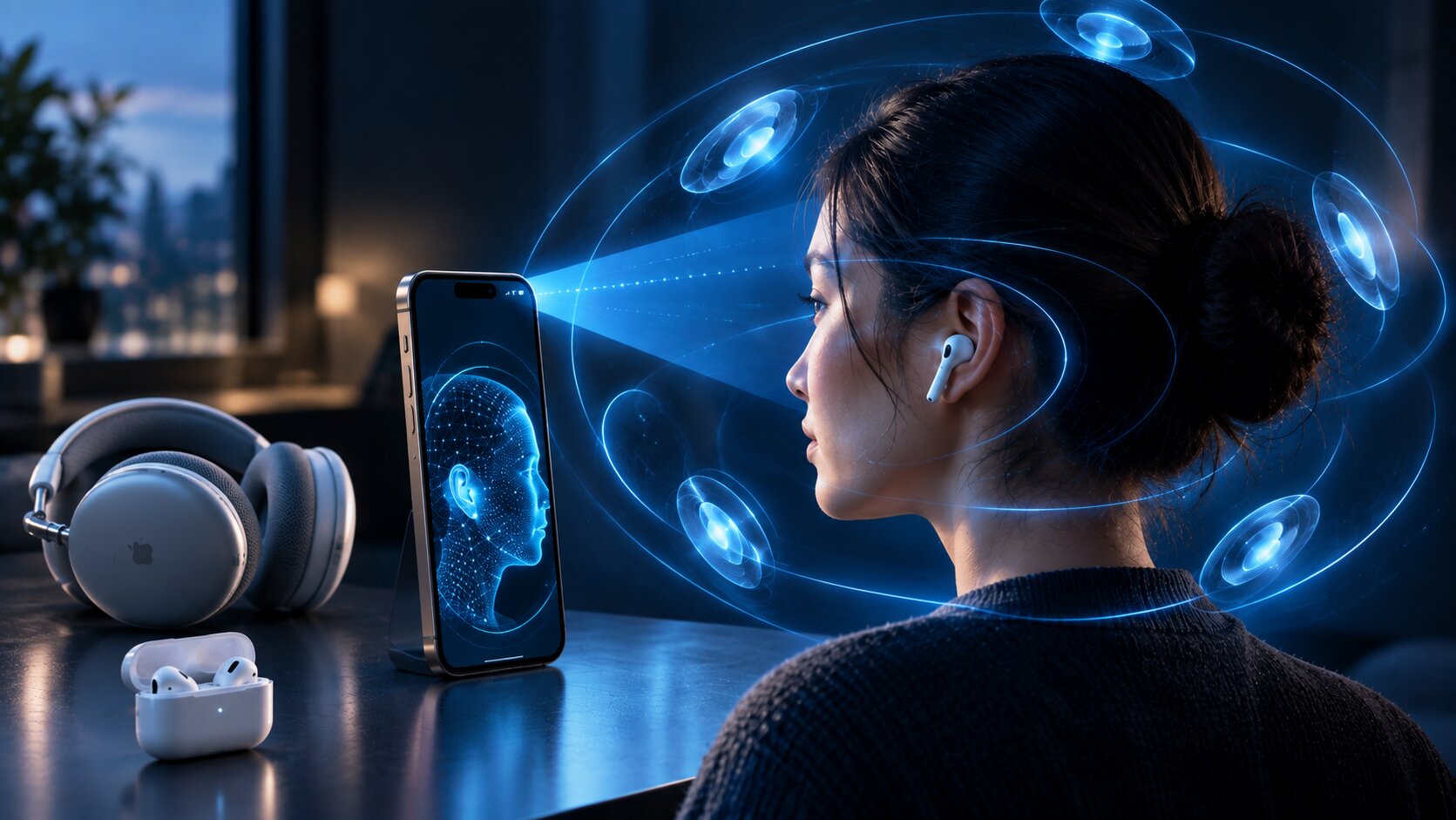

Direct Answer
Setting up Personalized Spatial Audio requires linking supported AirPods or Beats headphones to an iPhone equipped with a TrueDepth camera, navigating to your headphone settings, and completing the facial and ear scanning prompts. Once configured, your custom sound profile automatically syncs across supported Apple hardware logged into the same Apple Account.

Where the Effect Is Most Noticeable
Movies and television can make the effect easy to hear because dialogue and effects occupy positions around the listener. Dolby Atmos music varies more by mix and recording.
Use a familiar scene or track for comparison. Personalized Spatial Audio is easier to judge when you already know how the standard version sounds.
Personalized Spatial Audio Requirements
To use Personalized Spatial Audio, confirm you have the following setup ready before scanning:
- An iPhone model featuring a built-in TrueDepth camera array
- Compatible AirPods (e.g., AirPods Pro, AirPods Max, 3rd/4th Gen AirPods) or supported Beats models
- Up-to-date operating systems on both your iOS device and audio gear
- Content formatted for Dolby Atmos or multi-channel Spatial Audio
How to Create the Audio Profile
- Put on your paired AirPods or Beats headphones to confirm an active Bluetooth link.
- Launch the Settings app on your iPhone.
- Select your connected headphones from the top section of the main settings screen.
- Scroll to Personalized Spatial Audio and tap the option to begin setup.
- Hold your iPhone in front of your face to complete the initial frontal alignment scan.
- Slowly tilt your head to scan the left ear, then repeat the process for the right ear as prompted.
- Complete the setup wizard and test the custom profile with your favorite media.
The on-screen guidance directs your camera positioning during each phase, so no external tools or extra apps are needed.
Adjusting Playback Modes in Control Center
Swipe open Control Center while wearing your connected headphones, touch and hold the Volume slider, and tap the Spatial Audio icon to switch between modes:
- Head Tracked: Anchors the soundstage to your screen, shifting acoustic directions naturally as you turn your head.
- Fixed: Delivers three-dimensional audio without adjusting for your head movements.
- Off: Turns off spatial processing entirely to play traditional two-channel stereo.
While Personalized Spatial Audio defines your unique ear shape profile, Head Tracked and Fixed dictate how that sound field reacts to your movement during playback.
What Content Supports This Feature?
Your custom profile enhances compatible streaming tracks, films, television broadcasts, and games encoded with spatial metadata. Feature films often show the most dramatic improvement because vocal tracks and environmental sounds occupy clear spatial positions around you.
Music results depend heavily on how sound engineers mixed the track. Testing several albums across different genres will help you determine whether customized spatial playback suits your listening preferences.
Frequently Asked Questions
Can Personalized Spatial Audio be created without an iPhone?
No. You must use an iPhone with a TrueDepth camera to perform the initial ear and head scan. Once created, however, your saved profile automatically syncs to your Mac, iPad, Apple TV, or Apple Vision Pro via your Apple Account.
Is the facial scan stored as a normal photo?
No. The camera data is processed directly on your device to build a mathematical acoustic map, rather than being saved as standard images in your Photos library.
How do you turn off Personalized Spatial Audio?
Access your headphone settings menu on your iPhone, select Personalized Spatial Audio, and choose to delete the existing profile. You can recalibrate a new scan whenever you wish.
The Bottom Line
Configuring Personalized Spatial Audio takes under two minutes and tailors your soundstage to the unique shape of your head and ears. Once calibrated, try switching between Head Tracked and Fixed modes across your favorite media to find the setting that sounds best to you.
Source: Apple. Read the original article.
Read more:
- How to Master Apple Notes AI Features
- How to Use Apple’s Live Rewind Audio Intelligence?
- Related reading on techbland.com: Make Apple Music available offline; Understand Face ID and the iPhone TrueDepth system.


Comments are closed, but trackbacks and pingbacks are open.