

Youtube is a high powered platform and it’s in high demand from legions of users. as you know youtube is in 2nd rank overall and billions of users are getting into it. although on youtube you can find a various kind, of course, video, training, funny video, and lots of things, therefore, for that, you have to sign in with your Gmail account. so if you are looking for how to create a youtube channel then this article is for you. in here I describe completely about how to create a youtube channel, after reading this article you will get your answer and I hope it will solve your problems.
How to Create a Youtube Channel
In this article, you will get all the things that you are looking for, although you will learn how to create a youtube channel so read carefully and follow each step to not face difficulties. I will give you a complete guide about the youtube channel that you will need in further. so get start
Step 1. Create Gmail Account
initially, you need to create a Gmail account to sign in to youtube because while you sign in to youtube so you can like, comment and subscribe to youtube contents. so for this, I have already uploaded an article where you can learn if you don’t know how to create a Gmail account.
1. Open Youtube – open your favorite browser and search for youtube.
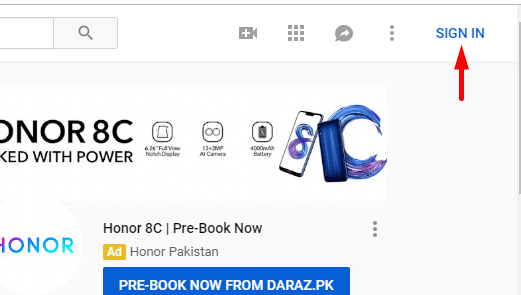
2. Sign in – firstly sign in with your Gmail account.
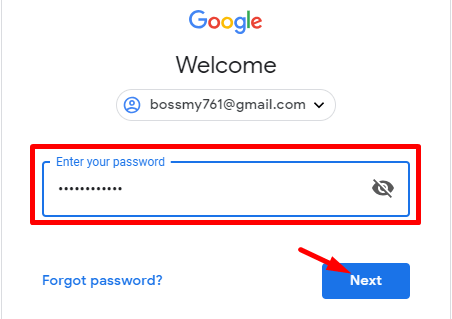
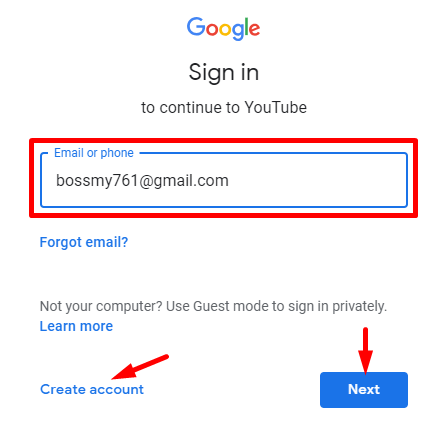
3. Email address – type your Gmail address plus Password, if you don’t have Gmail so click on the create account.
Step 2. Create a Youtube Channel
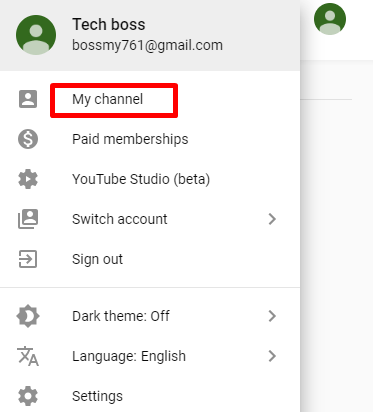
after that, you have a sign in with your Gmail account so now you need to create a channel. afterward, click on the Gmail account and click on my channel option then create a new channel.
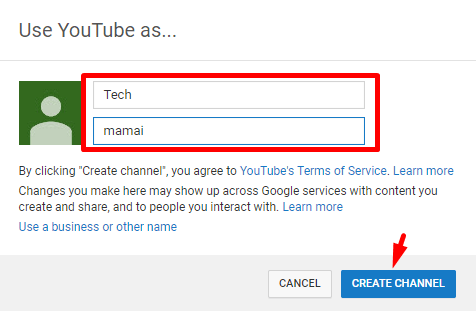
Step 3. Customize your Youtube Channel
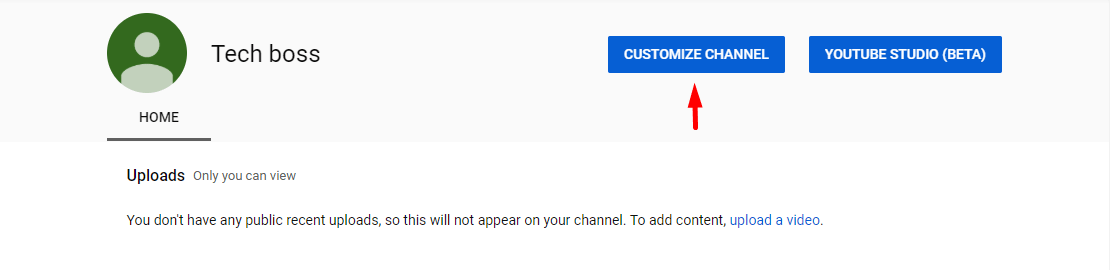
now you have created a channel but still, it’s not finished, now you need to customize your channels like a logo, background image, description and all things that I will show you below.
1. click on Customize Channel
2. edit logo and background image, and the recommended background image size are 2560 * 1440, the max file size should be 6MB.
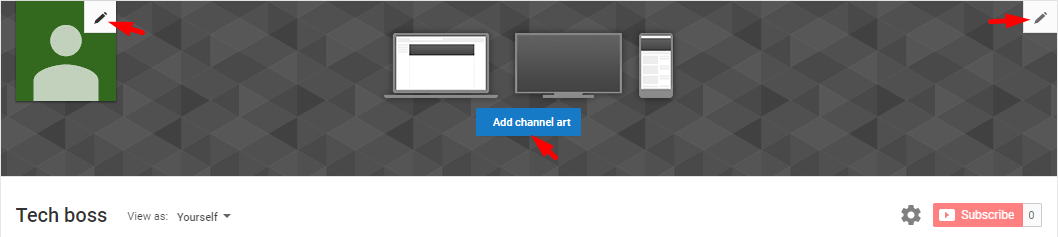
3. with this menu you can see your uploaded video, playlist, channel and lots of things.

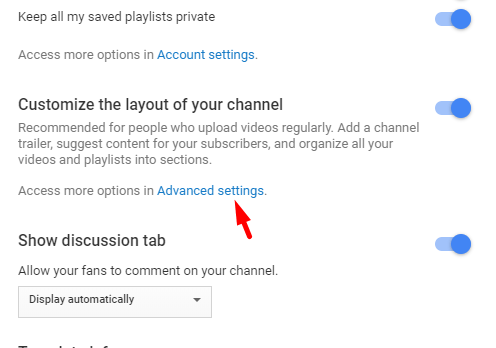
4. for more details click on the gear icon.
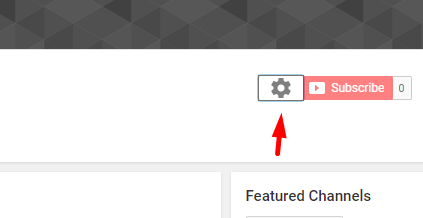
after that click on advanced settings.
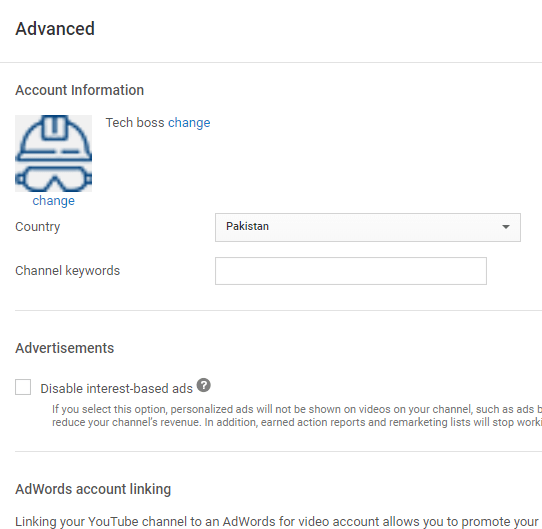
in advanced setting set your country and provide channel keywords like in this channel what things you will upload, type the category. besides that check other details and set it then clicks on the save button.
5. if you want to provide your social media profiles like Facebook, Twitter, Instagram, etc then follow this step.
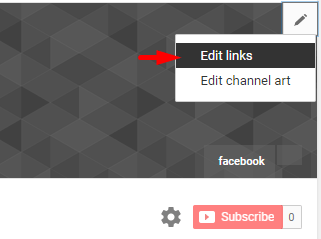
while you clicked on edit links afterward, scroll down and you will see CUSTOM LINKS then click on add button and add your social media links.
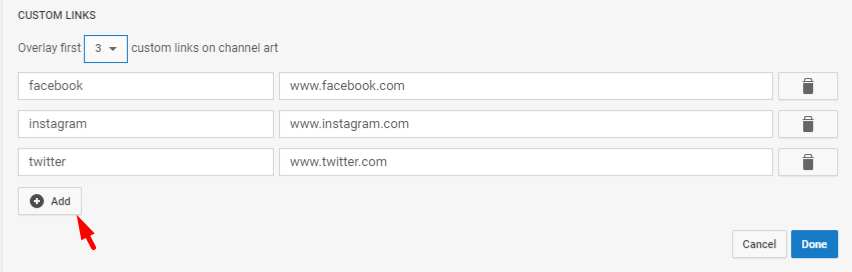
so I have told you about important parts of customizing your channel. and leave other options as default because they all are ok.
Step 4. Create a Brand Account
well, if you want to create a brand account then follow these steps. brand account are those account which you want to run two-channel with one Gmail account and besides that like you want to delete your account and use another one but you don’t want to lose your likes, videos, comments and subscribers then on that time you need to create a brand account. so let’s create a brand account
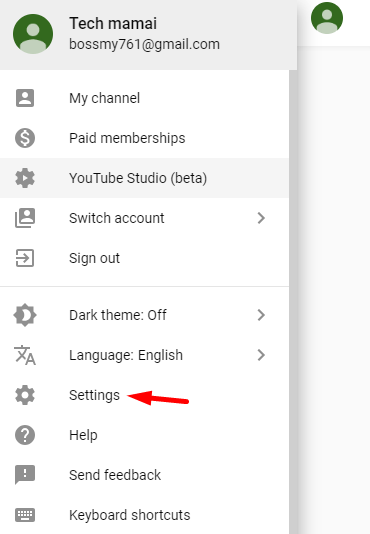
1. click on the channel icon and click the setting option.
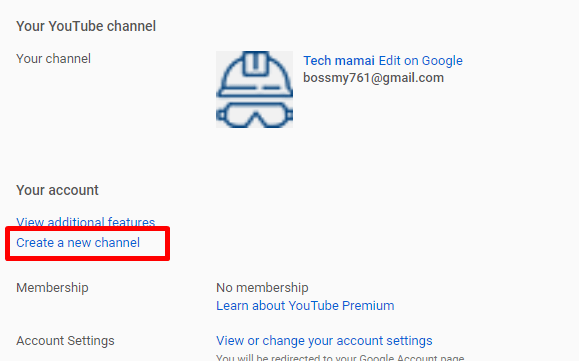
2. in Account setting click on the create a new channel.
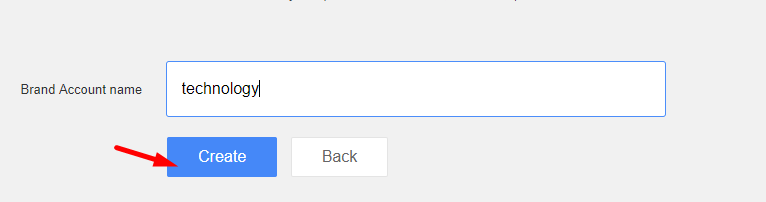
3. here type the new channel name that you want to create.
Step 5. Add or Remove Manager
if you want to add a manager or remove the manager then follow these steps. like you want someone to work on a channel with you then you can add them by typing their Gmail address. or you don’t want them to work with you then you can remove them.
1. go to settting->account
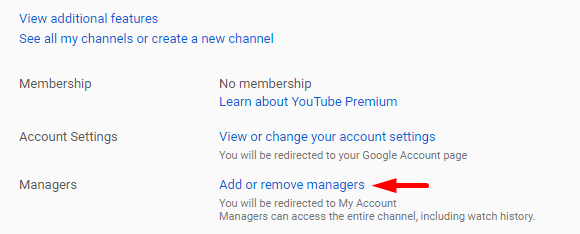
2. click on the add or remove a manager
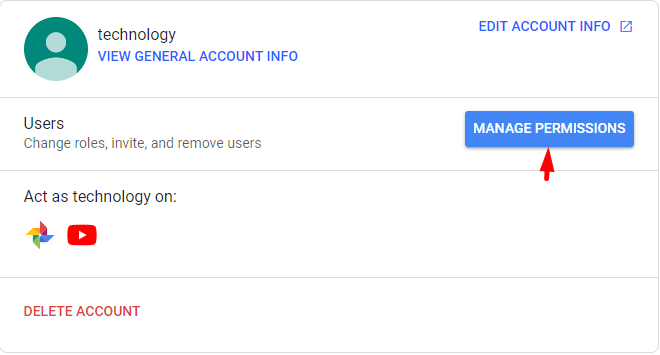
3. click on the manage permissions.
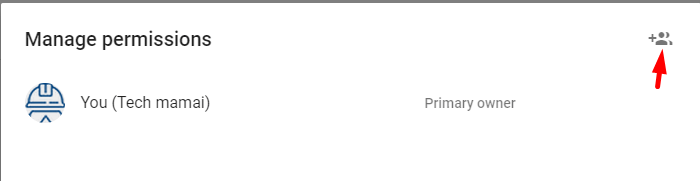
4. click on icon to add manager.
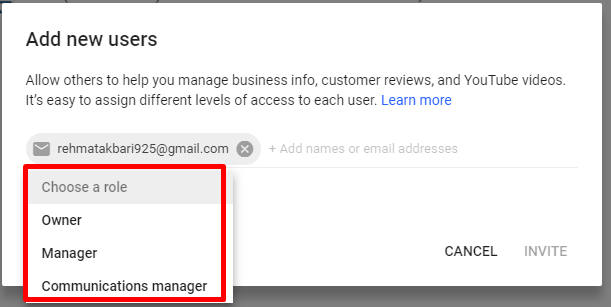
6. in here type the manager user name or Gmail address even you can add more than one manager at a time. after that choose a role for the manager then click on the invite and then click on done.
sweet, I have told you completely about how to create a youtube channel. so read each step carefully and follow the steps one by one. I hope this article gives you something and solve your problems.
Read Next:
- 5 Best Ways to Find My Mobile – Step By Step
- How To Create Apple Id on Computer – Best Method
- Best Youtube 4k Video Downloader
- How to Download Youtube 4k Video on Windows or Mac
In conclusion
this article gives you everything about how to create a youtube channel, and you will get all things about youtube channel and after reading this article you will never face such a problem.