How To Create Gmail Account on Computer: Hello, friends in this article we will guide you how to create a Gmail account using the computer. there are quite people who have no idea how to create a new Gmail account although it is so easy and simple. while you created Gmail account then afterward you can use it on your youtube, google drive, google, and you can access anywhere. so we know you are looking for an article which solves your problems easily. therefore we are here to show you how to create a Gmail account step by step.
How To Create Apple Id on Computer – Best Method Top 7 Powerful Android Hacking Apps in 2019 Top 5 Best Tips and Tricks For Smartphones User Top 10 Best Android Apps In 2019 – Get Know
Why do you need to Create a Gmail Account?
A Gmail account is a free Google account which ends with @gmail.com although besides google account we have yahoo account too. but the matter is here that google account is high powered in the 21st century, by creating a Google account you can access to youtube, Google Docs, Google Drive, Google Calendar, and Google Sites. therefore you need to create a Gmail account, so here we will tell you how to create a Gmail account. let’s start
How To Transfer Files Between Computer And Mobile Top 5 Best Camera Apps For Android In 2019 How To Root Android Phones Without PC (100%) Working How To Hack Wifi Password on Android & IOS
How to Create a Gmail Account?
in here we will show you step by step how to create a Gmail account, if you don’t have a clue then we are here to guide you and make you feel at home. so read carefully the steps in order to not face problems in future and follow our method.
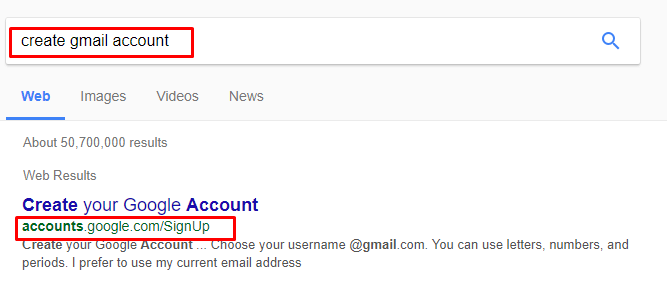
Step 1. open your favorite browser and search for create gmail account or click here after that click on the first link to start creating Gmail.
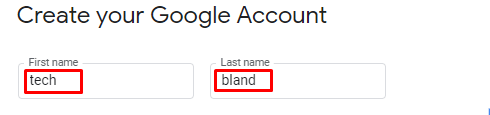
Step 2. at the first type your first name plus last name.
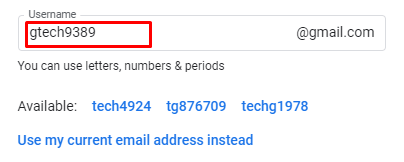
Step 3. then type your own Gmail address or select from below. here google will show you available Gmail where you can choose one of them.
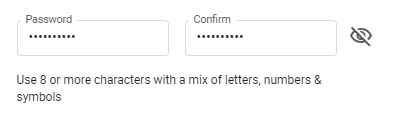
Step 3. in here it will ask you to provide a strong password as you can use Upper letter, Lower letter, Number and Symbols. besides that, your password should be 8 or more than 8 characters.
Step 4. after that type your phone number in order to receive a verification code on your phone number.
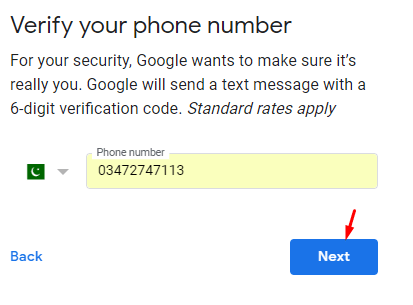
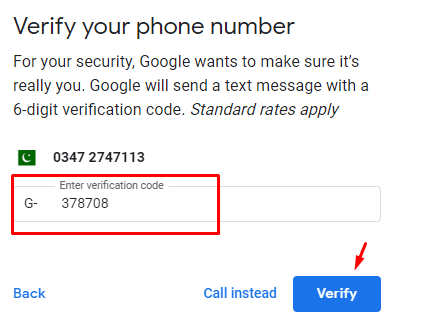
Step 5. while you typed your number then you will receive a Google verification code of 6-digit, then copy that and paste here.
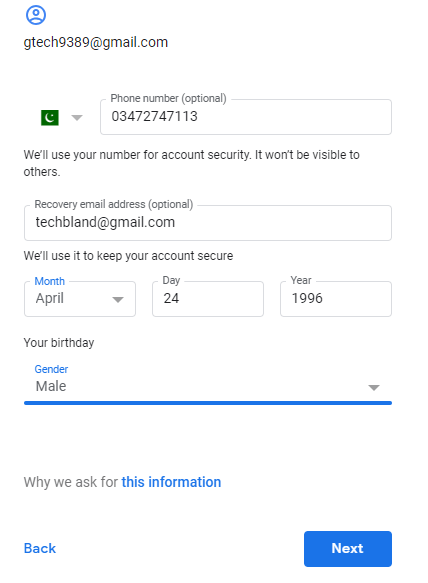
Step 6. afterward, do these steps
- provide a recovery email address if you have so type there if you don’t have then you may leave it.
- select your date of birth.
- select your gender.
- click on the next button.
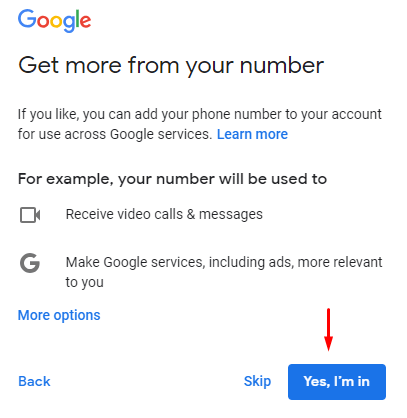
Step 7. if you want to get more detail or information from your number then click on the Yes I’m in. if you don’t want so skip this step.
Step 8. to create a Google account, you’ll need to agree on the terms of services below.
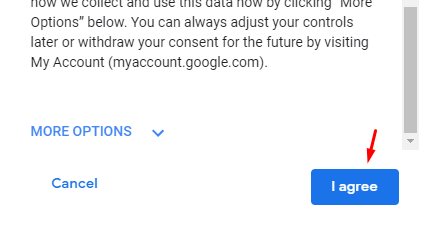
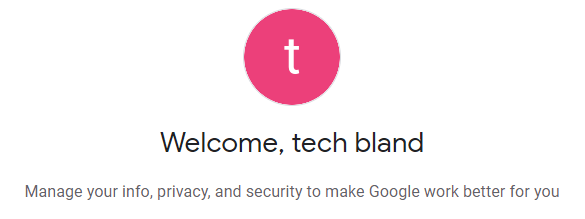
Step 9. congrats you have created your account successfully, now you can use it anywhere you want and you can send an email or receive an email from your friends.
In Conclusion
this article shows you the best and easy steps to create a Gmail account, and whenever you are in need of a new account then follow these steps. to top it off, if you get any questions then feel free to leave a comment.
visit our site daily for a latest and useful article. so thanks to being with us.